
Webhook status dashboard
Webhooks are a powerful way to connect Forumbee with your favorite tools, such as CRMs, analytics platforms, agentic workflows, or project management systems, enabling real-time updates and seamless processes. With the Webhook Status Dashboard, you can track and troubleshoot your webhook integrations directly within Forumbee.
The Webhook Status Dashboard tracks delivery attempts for your configured outgoing webhooks, so you can see what Forumbee sent and how your receiving system responded.
This guide walks you through everything you need to know about using the dashboard to monitor webhook performance and resolve issues quickly.
What the Webhook Status Dashboard Does
The Webhook Status Dashboard provides visibility into all your webhook activity. It helps you:
- Monitor performance: Instantly see which webhooks are working successfully and which have failed.
- Troubleshoot errors: Identify, view payloads and retry failed webhook deliveries.
- View detailed logs: Track every webhook event sent to your connected systems.
- Maintain reliability: Stay on top of potential issues with clear error messages and optional email alerts.
Accessing the Dashboard
- Log in to your Forumbee community as an admin.
- In the Admin Console go to Integrations > Webhooks.
- You’ll see an overview of all your active webhooks and their current status.
To add or edit webhooks, click Manage Webhooks or go to the Settings tab at the top of the page.
Understanding the Dashboard Overview
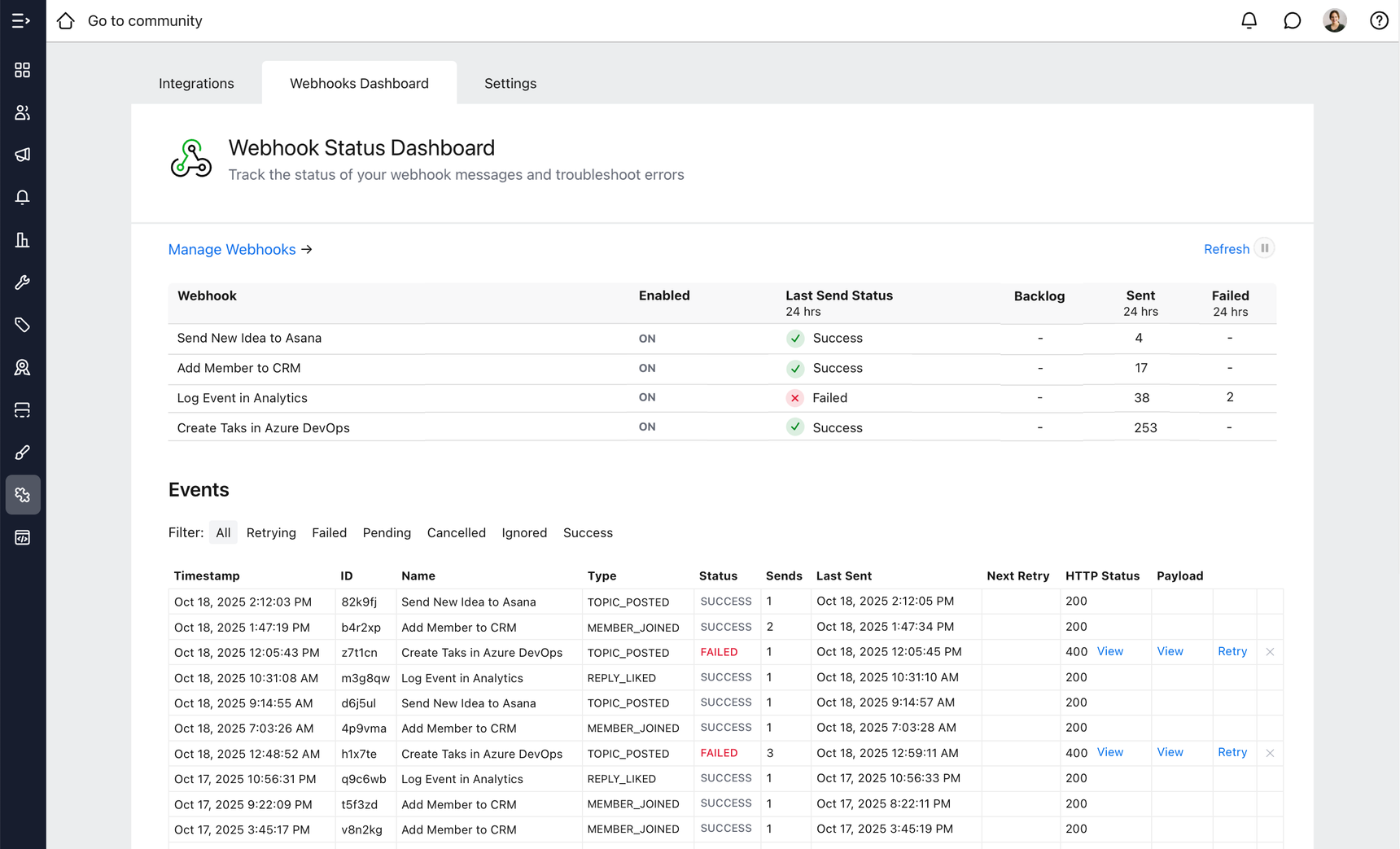
At the top of the dashboard, a summary table lists each configured webhook, with the following columns:

- Webhook: The name of your webhook (e.g., “Add Member to CRM”).
- Enabled: Shows if the webhook is currently active.
- Last Send Status: Displays whether recent webhook deliveries succeeded or failed.
- Backlog: Indicates if there are pending webhook deliveries waiting to be sent.
- Sent (24 hrs): The number of webhooks successfully sent in the last 24 hours.
- Failed (24 hrs): The number of webhook deliveries that failed in the last 24 hours.
A green check indicates success, while a red “x” marks a failure, providing a quick health snapshot of all integrations.
Tip: The dashboard automatically updates every 10 seconds to display the latest webhook activity.
You can pause live updates by clicking the Pause button, or refresh manually by clicking the Refresh link.
Viewing Event Logs
Below the overview table, the Events section lists all recent webhook activity in detail. Each row shows:

- Timestamp: When the webhook was triggered.
- ID: The unique identifier for the webhook message.
- Name: The webhook name.
- Type: The kind of event that initiated the webhook (for example, Topic Posted, Member Joined).
- Status: Whether the webhook delivery succeeded or failed.
- Sends: The number of times it has attempted to send to the receiving endpoint.
- Last Sent: When the webhook was last sent.
- Next Retry: If you have configured the webhook to retry on error, it will attempt to resend according to your settings.
- HTTP Status: The response code from the receiving endpoint (e.g., 200 OK or 400 Bad Request) with a link to view the full response message.
- Payload: For failed sends, click the link to view the exact data sent in the webhook.
- Retry: A link to retry a failed send.
This view helps you trace specific webhook deliveries, inspect their payloads, and understand the responses returned by your integrated systems.
Retrying Failed Webhooks
If a webhook delivery fails, a Retry link is provided.
After fixing the issue in your external app (for example, correcting an endpoint URL or authentication issue), you can:
- Click Retry next to the failed webhook.
- Forumbee will resend the webhook payload to your endpoint.
- Once successful, the status will update to Success.
Filtering and Searching Events
To help focus on what needs attention, use the filter options at the top of the Events list. Filter by:
- Failed: Only show failed webhooks.
- Pending: See webhooks waiting for delivery.
- Success: View only successful sends.
- Cancelled, Ignored, or Retrying: For special cases.
Debugging Tips
If a webhook fails:
- Check the HTTP Status Code
- 400 or 401: Bad request or authentication issue.
- 404: Endpoint not found.
- 500: Internal server error from your receiving application.
- Inspect the Payload
- Click View to see exactly what Forumbee sent.
- Confirm the data format matches what your receiving app expects.
- Fix and Retry
- Update your receiving endpoint or API key.
- Use the Retry option to resend the webhook immediately.
Email Notifications
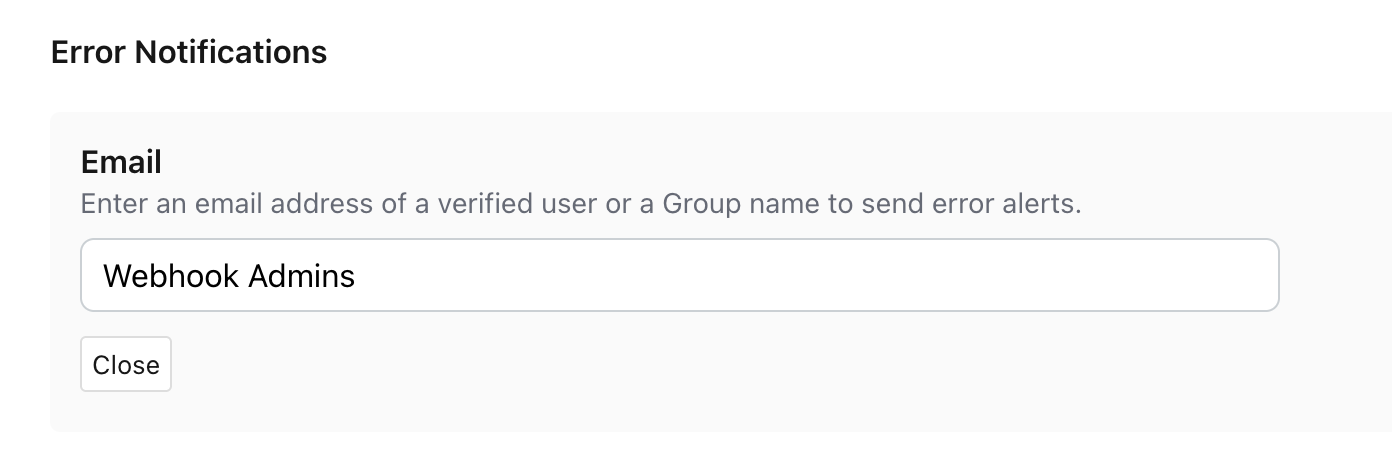
You can enable email alerts to be notified whenever a webhook fails. To set this up:
- Go to Integrations > Webhooks, then click the Settings tab.
- At the bottom of the page, under Error Notifications, click Edit.
- Enter the email address of a verified user or a Forumbee group name to send error alerts.
This ensures you can respond quickly to integration issues and maintain smooth data synchronization between Forumbee and your connected platforms.
Error Handling Settings
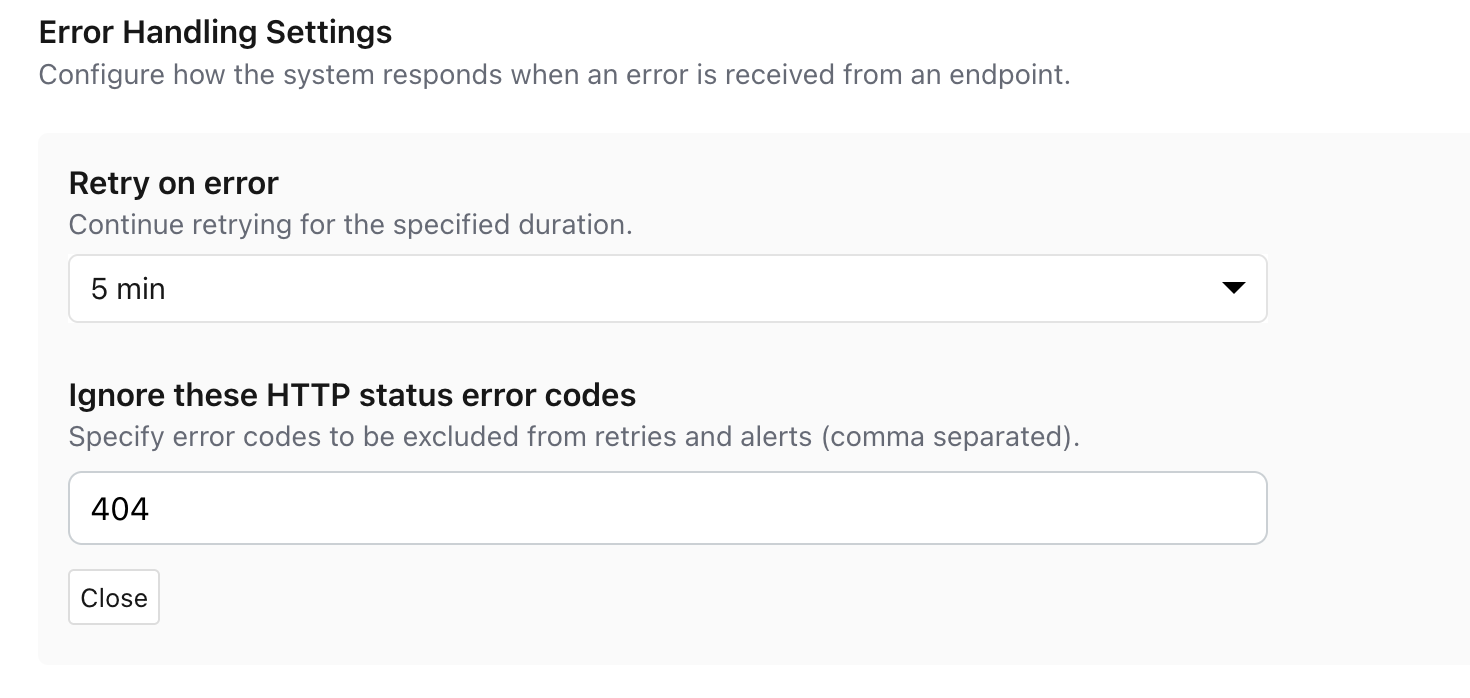
Within each webhook definition, you can configure how Forumbee handles delivery errors:
- Retry duration: Specify how long Forumbee should continue retrying after a failed attempt.
- Ignore list: Enter any HTTP status codes that should be excluded from retries and alerts.
These settings help you fine-tune how your system responds to transient or expected errors.
Use Cases
The Webhook Status Dashboard supports a wide range of integration and automation scenarios, helping you ensure data flows smoothly between Forumbee and your connected tools. Here are a few common examples:
- Agentic Workflows: Monitor and debug webhook triggers powering automation flows in tools such as n8n.
- CRM Synchronization: Instantly spot when new member data isn’t syncing to your CRM.
- Analytics Integration: Verify that engagement events are successfully logging to your analytics platform.
- Workflow Automation: Confirm that tasks or tickets are being created correctly in tools such as Asana or Azure DevOps.
Getting Started
If you already have webhooks configured, you’ll find the Webhooks Dashboard under Integrations in your admin console.
If you’re new to webhooks, explore our Webhook setup guide or reach out to us for help setting up your first integration.
Keep Your Integrations Healthy
The Webhook Status Dashboard gives you real-time visibility into your webhook activity, helping you ensure data flows smoothly between Forumbee and your external systems. Use it regularly to monitor performance, troubleshoot issues, and keep your community’s integrations running at peak reliability.