
Set up SAML SSO with Microsoft Entra ID
These steps set up SAML single sign-on between Forumbee and Microsoft Entra ID (formerly Azure Active Directory).
- Log in to the Microsoft Entra admin center at https://entra.microsoft.com with an account that can manage enterprise applications, such as an Application Administrator.
- Go to Enterprise applications. It is under Applications in the left menu, or type "Enterprise applications" in the search box at the top.
- Click New application.
- Click Create your own application.

- Enter a name for your app such as "Forumbee". Select the option Integrate any other application you don't find in the gallery (Non-gallery):

- Click Create.
- In the left navigation, under Manage, click Single sign-on and select SAML.

- In the Basic SAML Configuration section click Edit.

- In the following steps you will be entering values from your Forumbee account. Open another browser tab and navigate to your Forumbee account.
- Log in to your Forumbee account as an administrator.
- In Forumbee, navigate to Administration > Integrations > SAML.

- Click SSO Settings to expand the section.
- Copy the Audience field value and paste into the Microsoft field Identifier (Entity ID).

- Copy the SSO Consumer URL field value and paste it into the Microsoft field Reply URL (Assertion Consumer Service URL).

- (Optional) Copy the Single Logout URL field value and paste it into the Microsoft field Logout Url.
- In Microsoft click Save then close the dialog.

- In Microsoft in the Attributes & Claims section click the edit icon.

- Under Additional claims click the claim row which has the value user.mail. In the Name field change the value to email. In the Namespace field, delete the value. Click Save.


- Click the 2nd claim row which has the value user.givenname. In the Name field change the value to firstname. In the Namespace field, delete the value. Click Save.


- Delete the next row which has the value user.userprincipalname.

- Click the final claim row which has the value user.surname. In the Name field change the value to lastname. In the Namespace field, delete the value. Click Save.


- You have now finished editing the claims. Your Additional Claims list should now look like this:

- Click X to exit the User Attributes & Claims page.
- In the SAML Certificates panel, download the Certificate (Base64).

- Open the downloaded certificate in a plain text editor. Copy the text.
- In Forumbee, click Identity Provider Setup to expand the panel. Paste the certificate text into the Certificate field.
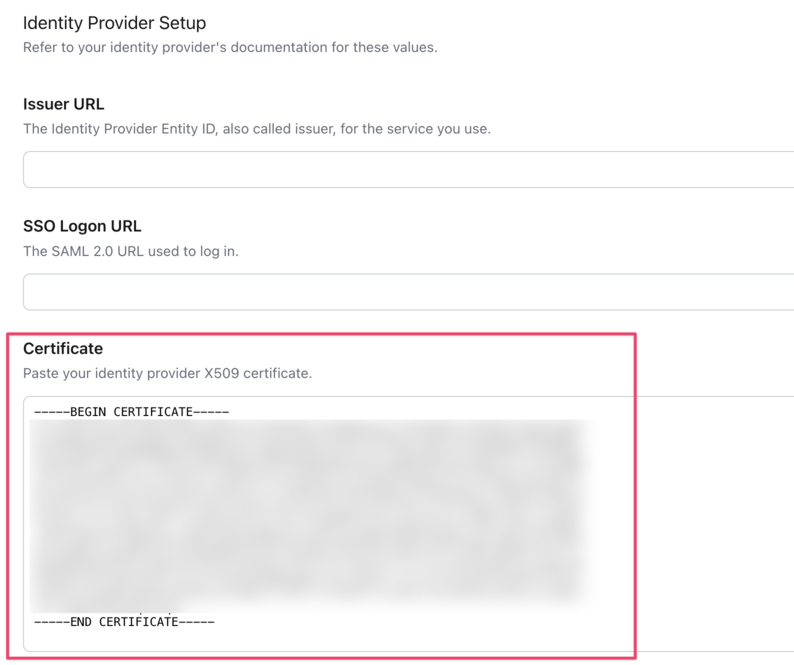
The certificate has an expiry date, shown in the SAML Certificates panel. In the future when you renew it in Microsoft Entra, paste the new certificate into Forumbee in the same way.
- In Microsoft, copy the value for the field Login URL.

In Forumbee, paste this into the field SSO Logon URL.

- In Microsoft, copy the value for the field Microsoft Entra ID Identifier.

In Forumbee, paste this into the field Issuer URL.
- (Optional) In Microsoft, copy the value for the field Logout URL. In Forumbee, paste this into the field SLO Logout URL.
- In Forumbee, click Save at the bottom of the Identity Provider Setup panel.
- Download the Forumbee image Forumbee Icon.png (right-click and select 'download').
- In Microsoft, add the image to the app. Under Manage navigate to Properties. Next to Logo click Select a file and upload the Forumbee image. Click Save.

- In Microsoft, assign users and groups to the app. Under Manage navigate to Users and groups and click Add user/group. Follow the steps on the screen to assign users or groups.

Note: every user needs a first and last name. Forumbee uses the firstname and lastname claims to create each member's profile, and sign-in fails if they are empty. Check that each user you assign has a First name and Last name in Microsoft Entra, not only a Display name. To add them, in Microsoft Entra go to Users, select the user, click Edit properties, and fill in First name and Last name.
In Properties, check that Assignment required? is set to Yes, so only the users and groups you assign can sign in.
Guest users (Microsoft Entra B2B). You can assign guest users to the app in the same way as members of your organization. They sign in to Forumbee through your Microsoft Entra tenant, and their own email address is passed to Forumbee. Guests are often invited with a display name only, so check their first and last names before they sign in.
If a user cannot sign in, check for errors in Forumbee under Administration > Integrations > SAML in the Log tab. The error {"errors":{"name":"required"}} means the user has no first or last name in Microsoft Entra.
- In Forumbee at the top of the SAML 2.0 page, click the Active toggle to turn SSO on.

- (Recommended) To make SSO the only way to sign in, first check that you can sign in to Forumbee through SSO. Then, on the same page under Login Options, check Enforce SSO and click Save. All users must then sign in through Microsoft Entra.