
Managing Content Blocks
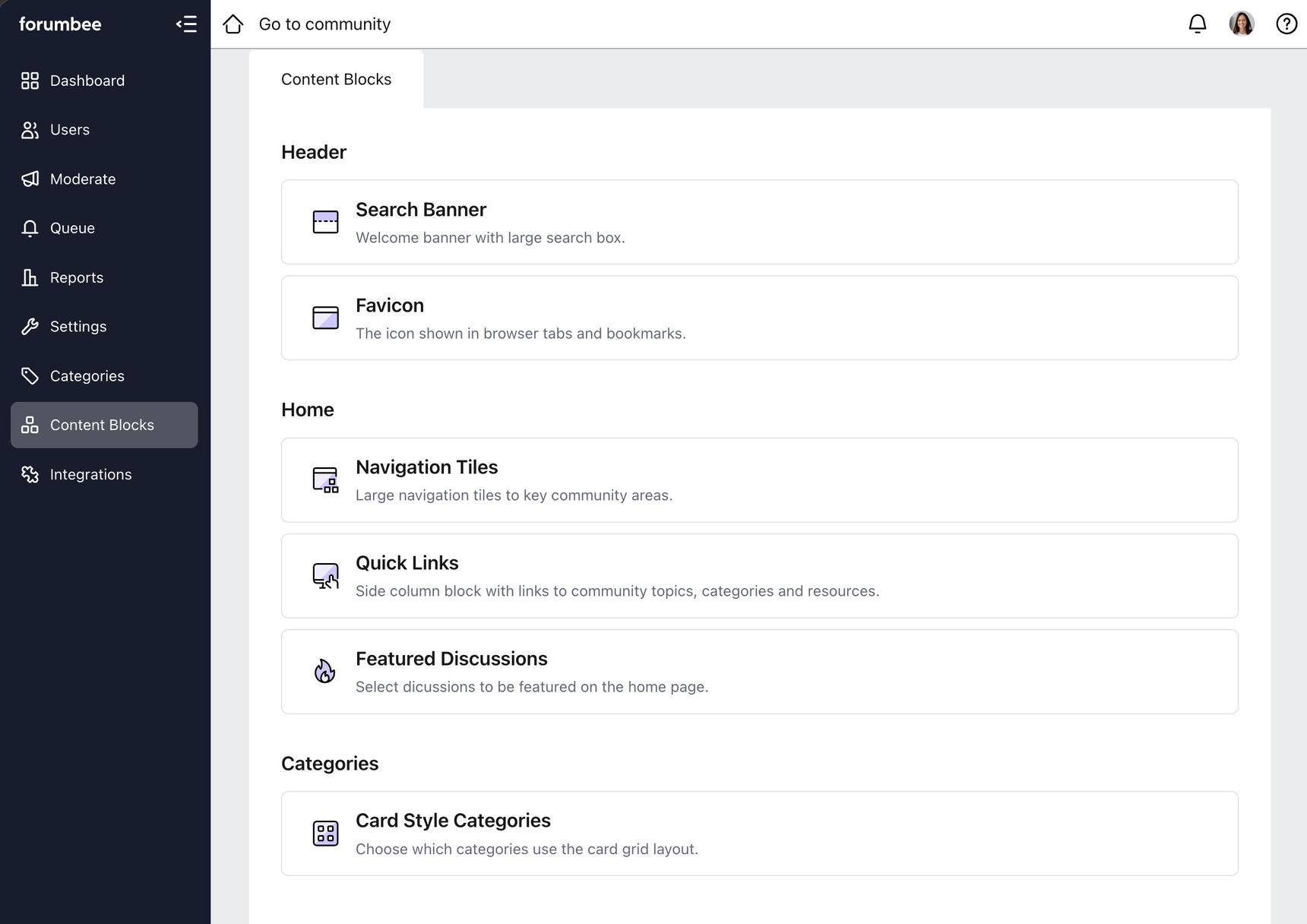
Content Blocks is where you manage the content for custom features in your community. If your community has been set up with custom elements, such as a featured content carousel or a highlighted member section on the home page, you can use Content Blocks to keep that content up to date.
Content Blocks only appears in the Admin Console if your community has custom features configured. If you do not see it and would like to learn more about adding custom features to your community, feel free to reach out to us.
Where to Find Content Blocks
Content Blocks is accessible from the left-hand navigation in your Admin Console. Select Content Blocks to view all configured blocks for your community.
The blocks are organized by location on your community, such as Home or Side Column. Each block listed corresponds to a specific custom element on your site.
How Content Blocks Work
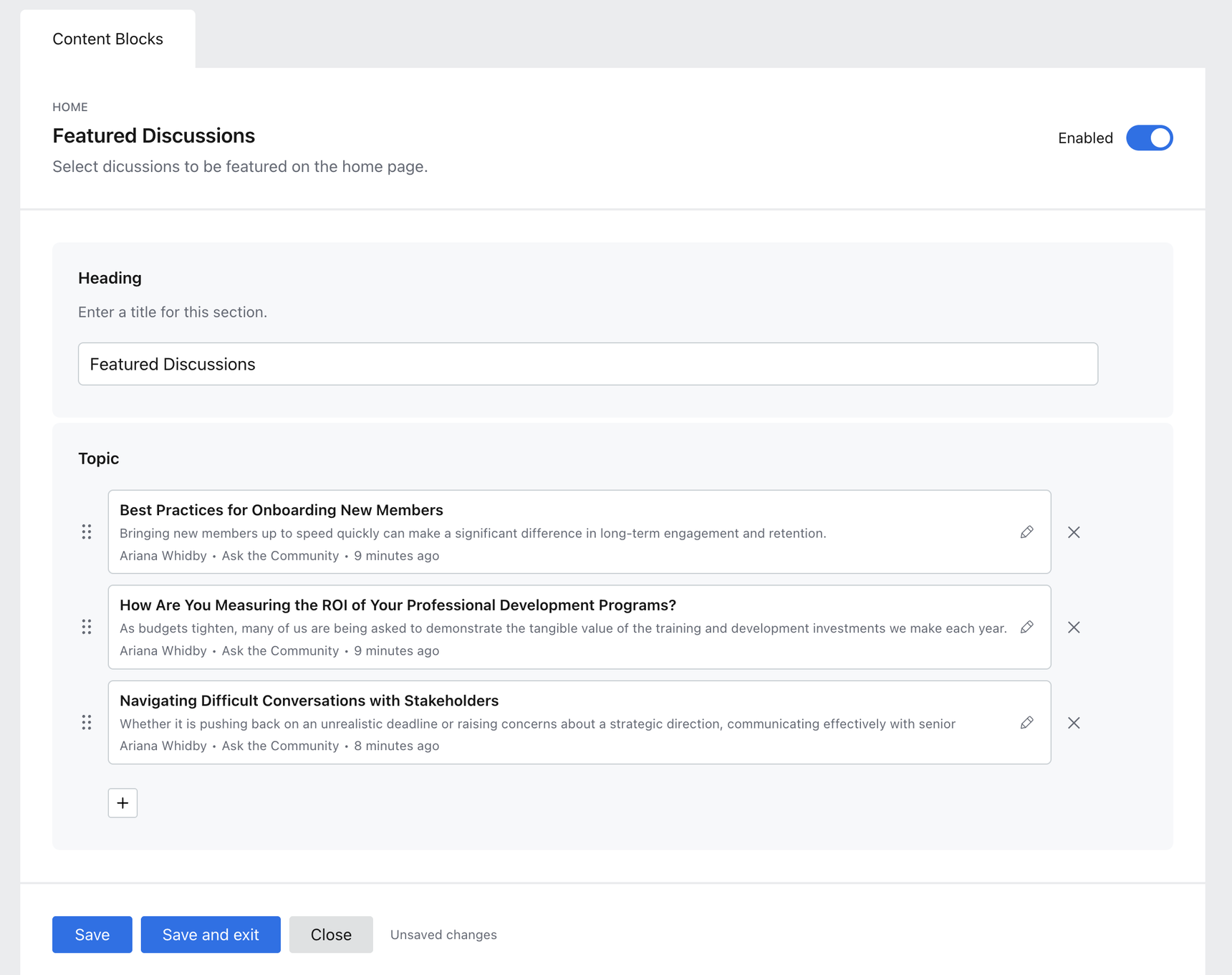
Each block represents a distinct section or feature in your community. Clicking on a block opens its editing view, where you can update the content associated with that feature.
Depending on the block, you may be able to:
- Edit text fields, such as titles, descriptions, or body copy
- Set a Heading for the section, which controls the title displayed in your community
- Upload or replace images
- Add items using the + button at the bottom of the items list
- Reorder items by dragging the handle on the left side of each item
- Remove items using the X button on the right side of each item
- Add or remove links
- Select categories from your community
- Select topics from your community
- Select icons
Not every block supports all of these actions. The fields available within each block are determined by what that feature is designed to display.
Enabling and Disabling Blocks
Some blocks include an Enabled toggle in the top-right corner of their editing view. When turned on, the block is visible in your community. When turned off, the block is hidden.
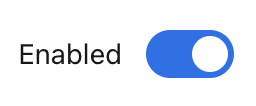
Not all blocks have this toggle. Some blocks are always on by design and cannot be disabled from the Admin Console.
Saving Your Changes
Each block has three options at the bottom of its editing view:
- Save: Saves your changes and keeps the block editing view open.
- Save and exit: Saves your changes and returns you to the Content Blocks list.
- Close: Closes the editing view without saving any unsaved changes.
If you have made changes that have not yet been saved, an Unsaved changes message will appear next to the buttons as a reminder.

Examples of Content Blocks
The blocks available in your community are specific to your implementation. Some commonly configured blocks include:
Search Banner: Allows you to edit the title text displayed in the search banner on the home page, as well as the placeholder text shown in the search field.
Featured Member: Allows you to add a short bio, member name, and profile photo to highlight a member on the home page.
Featured Discussions: Allows you to select discussions or questions from your community to feature on the home page. You can add, remove, and reorder the featured discussions, and set a heading for the section.
Featured Category: Allows you to select a category from your community to feature on the home page. The first three topics in that category are displayed as cards.
Card Style Categories: Allows you to choose which categories use a card grid layout, and to add or remove categories from that display.
Your community may include these or other blocks depending on what has been configured for your site.
Questions or Need Help?
If you have questions about the blocks in your community, or are interested in adding custom features, please contact us and we will be happy to help.